
Setting up your Cliniko API key
There are two ways to put Hanah and Cliniko together, and they stack.
- The API key — a one-time paste that lets Hanah read your appointments and file finished notes back into the right chart.
- The browser integration — an extension that puts Hanah on the Cliniko pages you already have open, so you can record and draft without leaving the patient you're on. No key required.
This post walks the key first, because it's the one with a copy-and-paste step. Then we'll add the extension and watch it work inside Cliniko. If you'd rather see it than read it, the walkthrough below is the whole thing end to end.
Step 1 — Create the key in Cliniko
In Cliniko, open My info from the bottom of the left-hand menu, scroll to API keys, and choose Manage API keys → Add an API key. Or go straight there: https://your-practice.cliniko.com/user/api-keys/new.
Give it a name you'll recognise later. "Hanah" does the job.
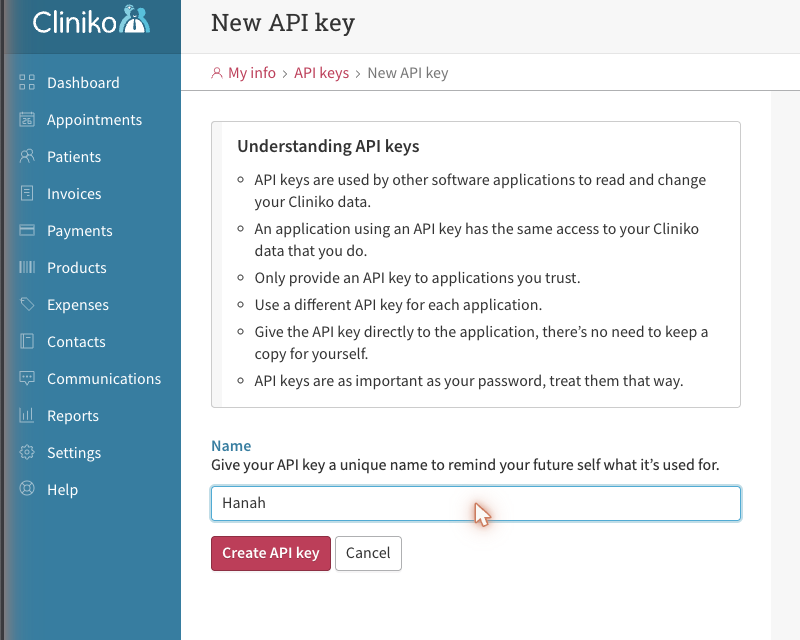
Hit Create API key. Cliniko shows you the key once — copy it now, paste it into Hanah in the next step, and you never need to keep a copy anywhere else. If you lose it, no drama: archive that key and make another.
Two things worth knowing before you create it. A key carries the same access to Cliniko data that you have, so keys are per-person, not per-practice — each clinician creates their own from their own login. And because you named this one for a single application, you can archive it later without disturbing anything else you've connected.
Step 2 — Paste it into Hanah
In Hanah, open Integrations from the left-hand nav. You'll see two sections: the browser integration (that's step 3) and the API integration.
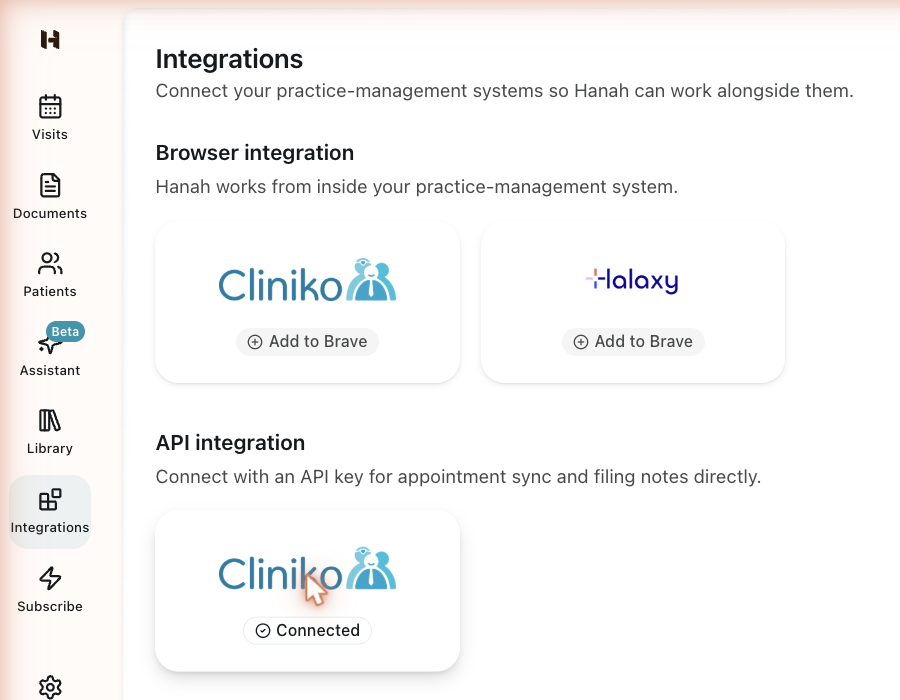
Click the Cliniko card under API integration and paste the key into the API key field. Hanah checks it against Cliniko as you type and shows you the practitioner the key belongs to, so you know it landed on the right account before you save anything.
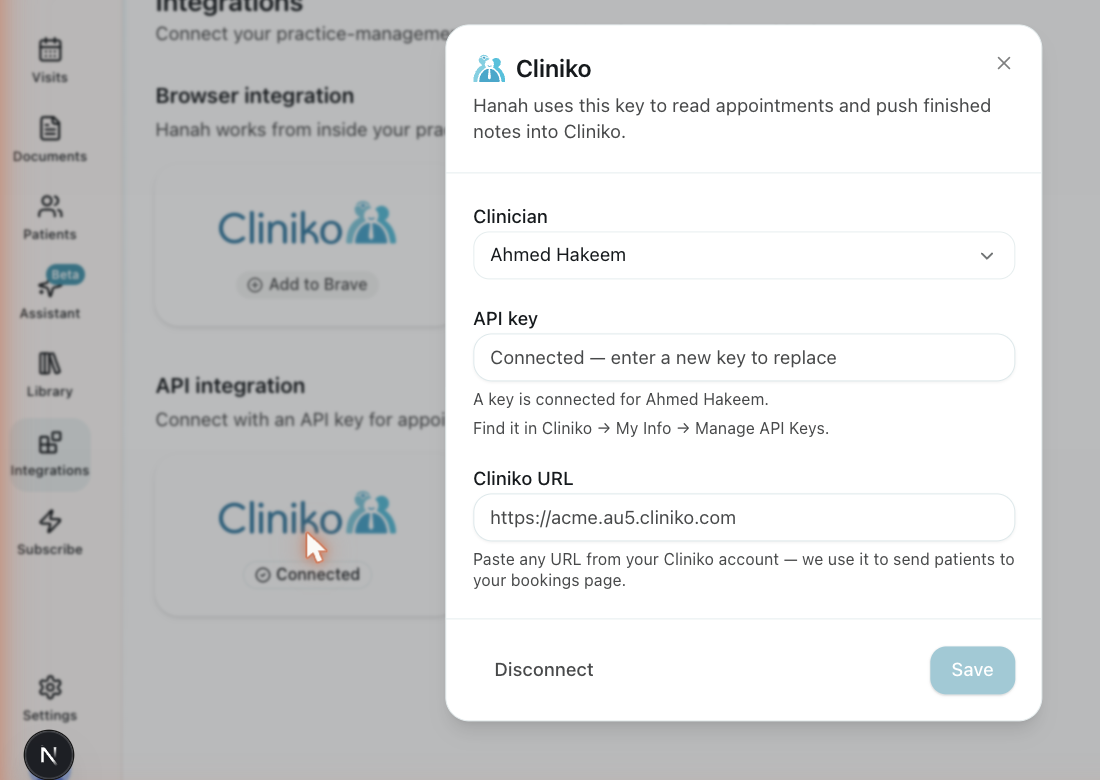
The second field, Cliniko URL, is not part of the key — paste any address from your Cliniko account (https://your-practice.au5.cliniko.com) and Hanah uses it to point patients at your bookings page. Cliniko's API doesn't hand that address out, which is why we ask for it.
Save, and the card reads Connected. That's the whole setup.
What the connection actually does
- Your schedule comes across. Appointments and patients appear in Hanah, so you start a session against the right person without re-typing a name.
- Notes go back to the right chart. A finished note is matched to the Cliniko patient and appointment it came from.
- Nothing files itself. Every note is a draft until a clinician reviews it and says so.
On the security side: the key is stored server-side and is never sent to your browser. It's scoped to the clinician who issued it, so notes are attributed to the right practitioner. And you can revoke it from Cliniko at any time by archiving that key — it stops working immediately, and nothing else you've connected is affected.
Step 3 — See it working inside Cliniko
The API key connects the two systems. The browser integration is what puts Hanah in front of you while you work.
Add it from the same Integrations page — the Cliniko card under Browser integration opens the Hanah extension in the Chrome Web Store. Install it, sign in to Hanah once, then open any patient in Cliniko.
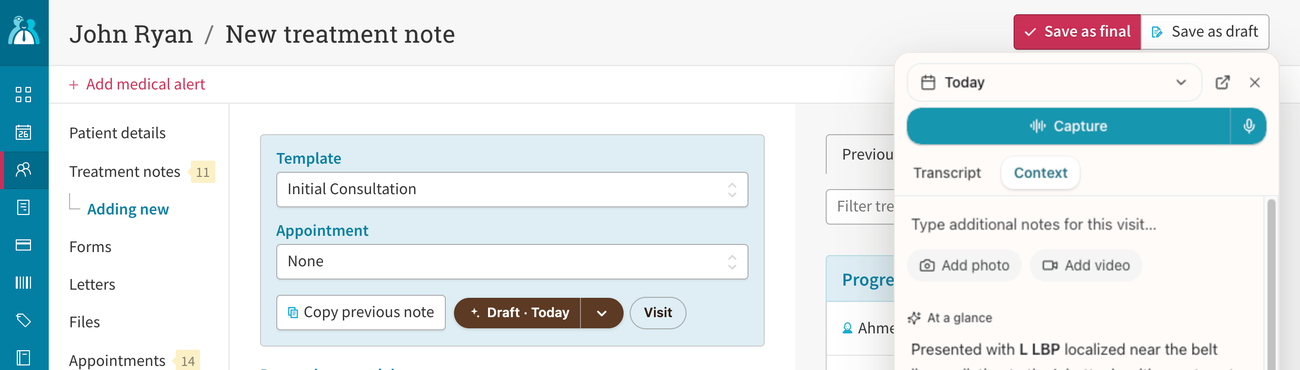
Two things appear, both on Cliniko's own pages:
- A Visit button, bottom-right. Record the consult from the patient page you're already on. The transcript builds in a small panel you can watch or ignore.
- A draft pill on the note form. Open a new treatment note and Hanah sits beside Cliniko's template picker. Pick the visit, generate, review the draft, and it fills the note's own sections — the ones your template defines, not a generic block of text.
The extension runs in your browser, on the page you already have open and are already authorised to see. It doesn't need an API key and doesn't touch Cliniko's servers, which is why it works even before you've done steps 1 and 2 — and why it also works on practice-management systems that don't offer an API at all.
Which do you need?
Most practices want both, and they do different jobs:
| Browser integration | API key | |
|---|---|---|
| Setup | Install the extension, sign in | Create a key, paste it once |
| Record on the patient page | Yes | — |
| Fill your PMS note template | Yes | — |
| Your Cliniko schedule inside Hanah | — | Yes |
| File notes to the chart from Hanah | — | Yes |
If you only ever work inside Cliniko, the extension alone will feel complete. If you also want your day's schedule in Hanah, and notes filed back from there, add the key.
Stuck on either step, or on a system we haven't listed yet? Book a demo and we'll set it up with you.